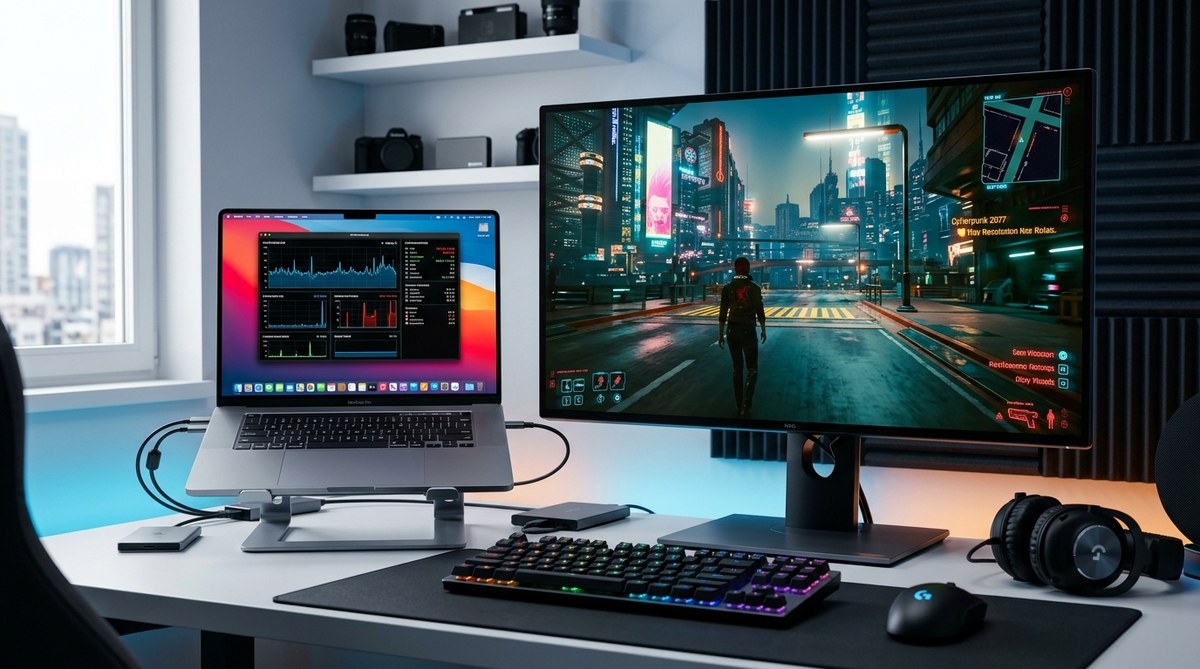
Gaming on a Mac has come a long way, but it can still feel like a puzzle when you want to run big budget AAA titles. The good news is you have a toolbox of practical tips that can squeeze more FPS, smoother frames, and fewer stutters out of your Mac. Whether you are gaming on a sleek MacBook Pro, a powerful iMac, or a compact Mac mini, this guide is built for Mac gamers who want real performance without resorting to heavy compromises. We will cover hardware considerations, software tweaks, in game settings, and smart workarounds like cloud gaming and controller setups. You will also find practical notes on popular topics for the Mac gaming crowd such as playing games like Resident Evil Village on Mac, using Discord for voice chat, and connecting a PS5 controller on macOS.
Understanding the Mac gaming landscape
Mac gaming has evolved from a novelty to a viable platform for many titles. The landscape breaks down into a few realities you should know before chasing higher FPS.
- Native Mac ports vs Rosetta 2 emulation: Some AAA titles have native Mac support or ports, while many others run under Rosetta 2 on Apple Silicon or require alternative routes such as cloud gaming. The performance delta can be significant, so plan your expectations accordingly.
- Apple Silicon versus Intel: Intel Macs can still use certain traditional methods like Boot Camp for Windows or eGPU setups, whereas Apple Silicon shines with additional efficiency and modern Metal based rendering but may not have equal access to all Windows based ports.
- Cloud gaming as a viable path: Services like GeForce Now, Xbox Cloud Gaming, and Shadow let you play heavy titles on macOS without pushing the local GPU to the limit. This is especially helpful for Macs with integrated graphics or older GPUs.
- Controller and peripheral compatibility: macOS generally supports a wide range of controllers, but you may need to pair, configure, and test to get the best input experience. This is where you will often hear about PS5 controllers and Discord voice chat in gaming sessions.
With this context in mind, you can choose a strategy that suits your setup and budget. Now let us dive into concrete steps you can take right away.
Optimize your Mac hardware for gaming
Hardware is the foundation of good gaming performance. Here are practical steps you can take.
- Improve cooling and airflow
- Elevate your Mac to improve air intake.
- Use a stand with built in fans or a passive cooling pad for laptops.
- Keep vents clean and avoid placing the laptop on soft surfaces that trap heat.
- Prioritize RAM and storage
- For Mac mini and iMac setups, more RAM helps with texture streaming and large world assets in AAA titles. If you can upgrade RAM, aim for 16 GB or more where possible.
- Fast storage speeds matter for load times and texture streaming. If you have a Mac with slower storage, consider an external high speed SSD for game installs and libraries.
- External GPU options
- If you are on an Intel based Mac with PCIe eGPU support, an eGPU can provide a meaningful FPS boost in some titles.
- Apple Silicon Macs do not support external GPUs in the same way as Intel machines, so plan other strategies for peak performance on those devices.
- Display and input devices
- An external display with a high refresh rate can unlock smoother gameplay when your GPU can deliver a stable frame rate.
- Choose a monitor with a native 60 Hz or higher refresh rate and low input lag for a better experience with AAA games.
- Power and battery management
- Ensure the Mac is plugged in while gaming to avoid throttling from power saving modes.
- In macOS settings, disable battery saving features when playing demanding titles on battery could result in frame rate drops.
- Prepare for a long gaming session
- Have a reliable power adapter and a clean desktop environment.
- Close unnecessary apps that consume CPU and memory.
Prepare your Mac for gaming: OS and drivers
A clean system state makes a big difference. Here are steps to ready macOS for gaming.
- Keep macOS up to date
- Install the latest macOS release and security patches. Newer systems bring performance and stability improvements that benefit gaming.
- Free up storage
- Delete unused apps and old installers.
- Use built in tools to optimize storage and keep at least 20 percent free space on your primary drive to reduce fragmentation and slowdowns.
- Manage background activity
- Open Activity Monitor to spot memory leaks or CPU heavy apps running in the background.
- Quit apps that are not needed during gaming, especially video editors, browsers with many tabs, and heavy background daemons.
- Focus on notifications and background tasks
- Turn on Do Not Disturb or Focus modes while gaming to avoid popups and interruptions.
- Disable non essential background services to free up CPU time.
- Network readiness
- If possible, use a wired Ethernet connection for better latency and stability.
- For WiFi, stay close to the router and use 5 GHz networks with minimal interference.
- Consider cloud gaming as a fallback
- If your local hardware struggles with AAA titles, cloud gaming can offer a higher fidelity experience at you Mac while your local GPU is not pushing the frame rates.
In game settings that maximize FPS on Mac
Tweaking in game settings can deliver a measurable FPS increase. Use these guidelines as a starting point.
- Resolution and scaling
- Start with a resolution that matches your display and then scale down if you need more FPS.
- Use a dynamic resolution or resolution scaling if the game supports it for smooth performance in busy moments.
- Visual quality presets
- Lower texture quality and shadow detail can dramatically increase FPS on some Mac configurations.
- Turn off or reduce post processing effects such as motion blur and depth of field that can tax the GPU.
- Anti aliasing and filtering
- If available, switch to a less demanding anti aliasing method or disable it entirely for a big FPS boost.
- Textures are more impactful on VRAM; balance texture quality with available memory.
- V-Sync and frame rate caps
- Disable V-Sync if you want the lowest possible input lag and if your monitor can handle higher frame rates.
- Set a frame rate cap to your display’s refresh rate or a sustainable target to avoid pointless GPU work in scenes with low demands.
- Shadows and lighting
- Shadows are typically heavy on most GPUs. Reducing shadow distance and quality yields a strong FPS increase.
- Overall optimization workflow
- Start with one or two changes at a time to evaluate impact.
- Use game benchmarks or built in FPS counters to measure performance.
Cloud gaming and streaming as a smart workaround
For many Mac users, cloud gaming is a practical path to the latest AAA experiences without upgrading local hardware every few years.
- GeForce Now
- Access a huge library of supported titles and run them on robust data center GPUs. It works well on modern Macs with a stable internet connection.
- Requirements include a fast network, a supported browser or app, and a GeForce Now subscription.
- Xbox Cloud Gaming
- Play via the cloud on macOS using Safari or other supported browsers and a compatible controller.
- Great for quick sessions and trying new AAA games without installing them locally.
- Shadow
- Shadow provides a full Windows PC in the cloud. It offers high fidelity and nearly full control, but it requires a strong internet connection and subscription.
- Parsec and other streaming tools
- Parsec lets you stream a PC game from another computer to your Mac over a local or wide area network. It is ideal for capturing more of your own library while staying on macOS.
- Pros and cons
- Pros: Great for Macs with modest GPUs or older Intel machines, no long downloads, no local heat.
- Cons: Latency sensitivity, ongoing subscription costs, and dependent on network quality.
Specific strategies for AAA titles on Mac
This is where we translate the general tips into actionable paths for well known games and common Mac setups.
- Resident Evil Village on Mac
- Native Mac port status varies by title and release window; many players rely on cloud gaming or Windows via Boot Camp or virtualization on Intel Macs.
- If you own a Windows environment on Mac (not available on Apple Silicon via Boot Camp), you can run RE Village at higher settings in Windows. For Apple Silicon, cloud gaming is often the most reliable option.
- Steps to optimize in a cloud streaming scenario:
- Use a wired connection or 5 GHz WiFi for stability.
- Start with a mid to high quality preset and then dial down textures if necessary to reduce streaming bandwidth.
- Ensure the controller and chat setup do not introduce extra latency.
- Discord and voice chat on macOS
- Discord is a staple for many Mac gamers. The good news is that it runs reliably on macOS and can be used alongside games without major performance impact.
- Tips:
- In Discord settings, enable hardware acceleration if your Mac handles it and disable it if you see stuttering in games.
- Use Push to Talk to prevent constant mic activity that can tax CPU.
- Position Discord on a separate screen or window so your game has maximum screen real estate.
- PS5 controller on macOS
- Connecting a PS5 DualSense controller to Mac is straightforward.
- How to connect:
- Method 1: Bluetooth
- Put the controller in pairing mode by holding the PlayStation button and the Share button until the light bar blinks.
- Open macOS Bluetooth preferences and pair the controller.
- Method 2: USB-C
- Connect via USB-C cable for a wired connection and lower latency.
- Calibration and configuration
- Ensure the controller is recognized in your game or Steam Big Picture if you use it as your main launcher.
- Some games may require you to enable controller support in the in game options.
- Benefits: natural ergonomic handling for long sessions and improved compatibility with games that support PlayStation controllers.
- Other popular games on Mac you may already enjoy
- Minesweeper and 2048: while casual, these games are great for short sessions and show that Mac gaming is diverse.
- Stardew Valley and Diablo 3: known to run well on Mac with appropriate settings and updates.
- Tic Tac Toe and Total War Three Kingdoms: they illustrate the range of strategies from light to heavy titles.
- Mac performance notes for specific games
- Some AAA titles have Mac ports by third party publishers. Always verify Mac compatibility on Steam or the publisher’s site.
- If a game does not have a native Mac version, consider cloud gaming as an effective alternative or use a Windows environment on Intel Macs.
Peripherals and network setup to maximize your Mac gaming experience
The hardware you choose can shape the feel of every session.
- Controllers and input options
- PS5 DualSense, Xbox controllers, and some third party controllers are widely supported on macOS.
- For responsive input, use wired connections when possible and adjust in game sensitivity settings to taste.
- Audio and voice chat
- Use Discord for in game voice chat, but ensure your system audio levels are not clipping or interfering with in game audio.
- Networking
- A stable, low latency connection is crucial for online and cloud gaming experiences.
- If you are consistently seeing lag, test a wired Ethernet connection or upgrade your router to a model with better QoS and traffic management.
- External displays
- An external monitor can add screen real estate and a higher refresh rate. Ensure that your Mac can drive the display at its intended refresh rate and resolution.
Case study style tips for different budgets
- Budget minded
- Focus on software optimization, cloud gaming options, and using Discord on a mid range Mac.
- Choose cloud gaming or streaming to access AAA titles without heavy local hardware investments.
- Mid range
- A MacBook Pro with a strong CPU and ample RAM paired with a good external monitor can deliver a strong experience at 1080p or 1440p in many games after settings tweaks.
- Consider an external SSD for fast load times and improved texture streaming.
- High end
- If you have an Intel Mac with eGPU support, upgrade to a recommended eGPU and a high refresh monitor to push higher FPS on demanding titles.
- For Apple Silicon, focus on cloud streaming or native Mac ports and rely on well optimized titles to maintain performance.
Tips for long term Mac gaming health
- Periodic maintenance
- Regularly back up your data and keep your drivers and game libraries updated.
- Clean up old save files and caches to prevent slowdowns.
- Safe experimentation
- Try one setting at a time in a game to understand the impact on performance.
- Record FPS and stability data so you can revert to the best configuration.
- Staying in the loop
- Follow Mac gaming news for updates on new ports, patches, and performance improvements for your favorite titles.
- Check macgames.org for reviews and tips around Resident Evil Village on Mac and other big titles.
Frequently asked questions
- Is gaming on macOS Sonoma better than older releases?
- Each macOS release brings improvements in energy management and system performance. The best choice is to keep your OS updated and tune in game settings to the capabilities of your hardware.
- Does Steam work well on Mac?
- Steam is well supported on macOS and offers many Mac native ports as well as compatibility layers for others. Always verify the Mac OS requirement for each title.
- Can I play Windows only AAA titles on a Mac?
- Yes, but it depends on your Mac model. Intel Macs can use Boot Camp to run Windows natively, while Apple Silicon relies on virtualization, Rosetta 2 for some x86 titles, or cloud gaming. Mac users who want the full Windows AAA experience often lean on cloud gaming or a Windows dedicated PC via streaming.
- Should I always disable V-Sync for best FPS?
- Not necessarily. If screen tearing is present and you prefer fewer artifacts, V-Sync can help. If you want the sharpest input response, test without V-Sync and cap the frame rate to your monitor refresh rate.
- Is it worth using an eGPU on a Mac?
- On Intel Macs with eGPU support, it can provide a step up in certain titles. Do the math based on power needs and your budget, since eGPUs add complexity and cost.
Final thoughts
Gaming on a Mac is about combining smart hardware use with disciplined software tuning. You do not need to compromise on your Mac experience to enjoy AAA titles. Whether you lean into native Mac ports, Rosetta 2 assisted games, or cloud gaming, you can achieve a smoother, more playable experience with the tips above. And for Mac gamers who want to share the journey, you can coordinate with friends using Discord, connect a PS5 controller for comfortable play, and even explore cloud based routes for those heavy hitters like Resident Evil Village. As you test settings and refine your setup, you will discover the sweet spot where your Mac runs your favorite AAA games with confidence.
If you want more targeted guidance for specific titles or hardware configurations, drop a comment or check our Resident Evil Village on Mac and Total War: Three Kingdoms coverage on macgames.org. We will keep updating this guide as new updates, ports, and cloud gaming options arrive. Happy gaming on your Mac, and may your frames per second be high and your load times short.
Leave a Reply