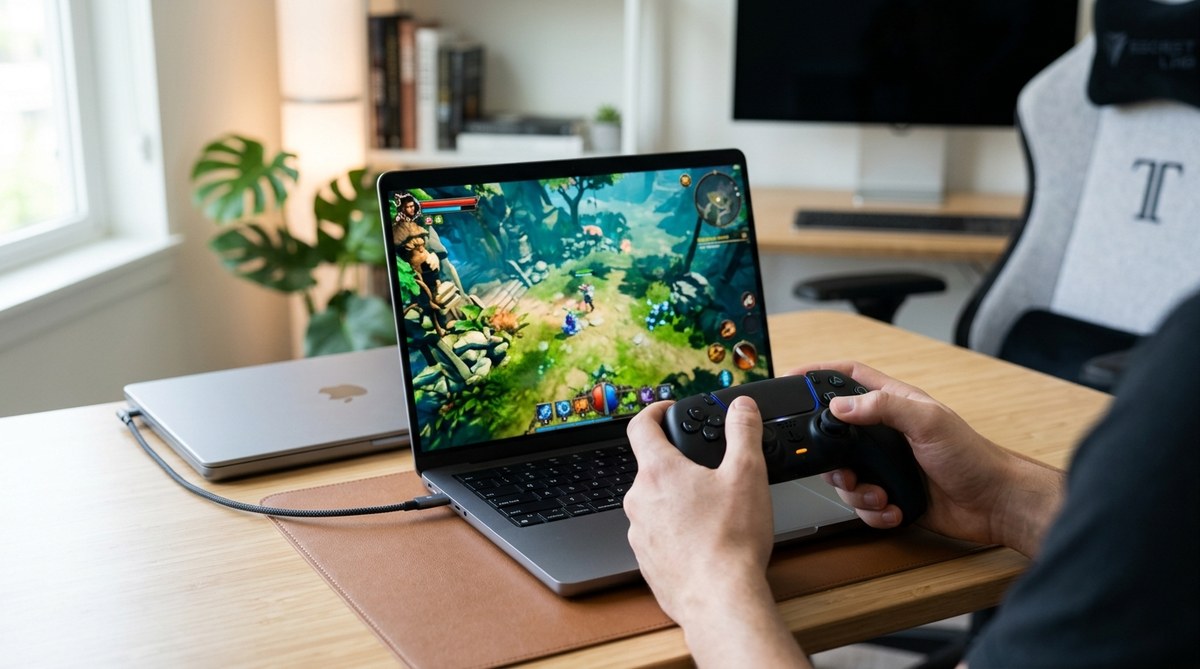
Gaming on a Mac can be a surprisingly smooth ride once you map the right controls. If you love the feel of the PS5 DualSense controller and want to bring that comfort to macOS gaming, you are in the right place. This guide walks you through how to connect a PS5 controller to your Mac, what works and what to expect, plus practical tips to get the most out of your favorite Mac games and Steam titles. Whether you are grinding in Diablo 3, farming in Stardew Valley, or diving into Resident Evil Village on macOS, the PS5 controller can be a solid companion.
Why use a PS5 controller on macOS
Using the DualSense on macOS offers several benefits for Mac gamers:
- Comfortable ergonomics: The DualSense sits in your hands like a classic console controller, with well spaced buttons and a responsive D pad.
- Consistent layout across games: The button layout mirrors other PlayStation devices, making it easy to switch between console and Mac gaming.
- Compatibility with a broad library: A growing number of macOS games support controllers natively or through Steam Input.
- Enhanced features where supported: Some titles can leverage haptic feedback and adaptive triggers when the game and platform support them, though support on macOS can vary by game.
- Ease of use with Steam and Remote Play: Steam’s controller settings simplify mapping, while Remote Play lets you stream PS5 games to your Mac with the controller intact.
What you will need
To get started with a PS5 DualSense on macOS, gather these essentials:
- A PlayStation 5 DualSense controller
- A Mac computer running macOS (Big Sur through Sonoma or newer recommended)
- A USB-C cable for wired connection, or a Bluetooth capable Mac for wireless setup
- A PS5 DualSense compatible game or a Steam title that supports controllers
- Optional but helpful: Steam client installed for Steam Input configuration
- Optional: A reliable network if you plan to use Remote Play
Connection methods
There are two main ways to connect your PS5 controller to macOS: Bluetooth wireless pairing and USB wired connection. Each method has its own setup steps and notes.
Bluetooth pairing
- Put the DualSense into pairing mode:
- Hold the PS button and the Create button (the small button near the D pad) at the same time until the light bar flashes rapidly.
- On your Mac, open System Settings (or System Preferences on older macOS).
- Go to Bluetooth and ensure Bluetooth is turned on.
- In the list of devices, choose the DualSense Wireless Controller or Wireless Controller and click Connect.
- The light bar will stabilize and the Mac will confirm the pairing.
Tips:
– If you do not see the device, try turning Bluetooth off and back on, or restart the Mac and retry.
– Some macOS versions may show the device as a generic gamepad. That is normal and usually does not prevent use.
– For best reliability, keep the controller close to the Mac during pairing.
USB connection
- Connect the DualSense to your Mac with a USB-C cable.
- The Mac should recognize the controller automatically; you may see it appear in Bluetooth as a USB device, or it may show up under a generic gamepad entry.
- Open your game or Steam and verify the controller input is detected.
Tips:
– A wired connection often results in lower latency and fewer disconnects, especially with intensive games.
– Use a high quality USB-C cable to avoid intermittent drops.
Bluetooth limitations and notes
- Some macOS versions and hardware configurations may experience occasional disconnects or latency variability with Bluetooth.
- If you see lag or dropped inputs, try the wired connection first, then reconnect via Bluetooth.
- If you have many Bluetooth devices, you might need to reset Bluetooth on the Mac and re-pair the controller.
How to set up with Steam and Steam Input
Steam can greatly simplify getting a PS5 controller working across a large library of games on macOS.
- Install Steam and log in.
- Connect the DualSense via Bluetooth or USB.
- In Steam, navigate to Steam > Settings > Controller > General Controller Settings.
- Enable PlayStation Configuration Support (and any other related options you prefer).
- For a per-game configuration:
- Right click a game in your Steam Library.
- Choose Properties > Controller Settings and select Use Steam Input Per Game if you want customized mappings.
- Launch the game and test the controller mapping. You can adjust button mappings, sensitivity, and gyro through Steam Input for supported titles.
Notes:
– Some non-Steam games also respect Steam Input if launched through Steam.
– If a game does not detect the controller, check in-game options for controller support or enable an alternative mapping tool if available.
Using DualSense with native macOS games and Apple platforms
Not every macOS game fully supports DualSense features, but many do recognize a gamepad input. Here are practical tips:
- Native macOS games: Look for “Controller Support” in the game’s options or check the Mac App Store page to see if controllers are supported.
- Apple Arcade: Some titles on Apple Arcade can be played with a connected gamepad; ensure the game is configured to use the controller in its settings.
- Third party launchers: If a game does not natively support controllers, using a wrapper or mapping tool via Steam may enable basic gamepad input.
PS Remote Play on Mac
If you want to play PS5 games that are not readily available on macOS, PS Remote Play is a solid option.
- Overview: Remote Play streams your PS5 to your Mac and lets you use your connected controller.
- Setup steps:
- Install the PS Remote Play app on your Mac.
- Sign in with your PlayStation Network account.
- Ensure your PS5 is online and set up for Remote Play in the console settings.
- Connect the DualSense to your Mac via Bluetooth or USB, then start a Remote Play session.
- Start playing; the controller input is transmitted to the PS5.
Tips:
– A wired Ethernet connection for both your Mac and PS5 helps reduce latency.
– Use a fast home network to maintain smooth streams, especially for action heavy titles.
Game compatibility and expectations
The macOS scene includes a wide range of games that work well with a DualSense controller. Here are common scenarios and what to expect:
- Diablo 3 (Mac): A long standing title with solid controller support on Mac. You can map actions and enjoy the game with console style input.
- Stardew Valley (Mac): This beloved farming sim supports controller input in many builds; configure in-game or via Steam for best results.
- Total War Three Kingdoms (Mac): If you own the Mac port, you can use the controller in many tactical strategy sessions. Some menus may require mouse input, so be prepared to switch occasionally.
- Resident Evil Village (Mac): Depending on your setup, this may run via a Mac native build or through a Windows environment on Mac using Steam or Virtualization. In many cases the controller works as expected, but check game requirements for controller support on macOS.
- 2048 and Minesweeper: Classic puzzle games with simple control schemes. While not all native Mac variants map to a DualSense, many players use Steam or browser-based builds with controller support or keyboard alternatives.
Pro tip:
– For complex strategy games or titles that rely heavily on precise camera control, you may find some games respond better to using mouse and keyboard. The DualSense still works for many menus and general gameplay, but you may want to switch inputs for certain tasks.
Discord and PS5 controller on macOS
If you like to chat with friends while gaming, Discord on macOS pairs nicely with a PS5 controller:
- Connect your controller as described above.
- Launch Discord and the game you are playing.
- In Discord settings, enable Game Activity and ensure Discord sees the correct game input.
- You can still use your controller for in-game actions while communicating with friends.
Discord does not replace game input, but it helps maintain clear voice chat and screen sharing while you play. If you run into audio hiccups, check macOS privacy settings for microphone permission and ensure Discord has the correct audio device selected.
Troubleshooting common issues
When the PS5 DualSense on macOS misbehaves, here are practical steps to diagnose and fix:
- Controller not recognized:
- Ensure you are using a compatible macOS version.
- Try both Bluetooth and USB connections to identify which method works best.
- Reboot the Mac and the controller if necessary.
- Intermittent disconnects:
- Use a wired connection for the most reliable experience.
- If using Bluetooth, remove other nearby Bluetooth devices that could cause interference.
- Buttons not mapping correctly:
- In Steam Input, reconfigure the per-game controller settings.
- Check in-game options to confirm the correct controller profile is selected.
- DualSense features not supported by a game:
- Many macOS games do not expose haptic feedback or adaptive triggers.
- You can still use the controller for basic input even if advanced features are not active.
- Remote Play lag or drop outs:
- Use a wired Ethernet connection for both devices if possible.
- Lower the stream resolution in Remote Play settings to stabilize performance.
Tips and best practices
- Prefer wired whenever possible to minimize latency, particularly for fast paced action games.
- Keep the controller updated by checking for firmware updates if you encounter drift or button issues.
- For Steam games, always enable PlayStation Configuration Support in Steam Input to maximize compatibility.
- If you play on a MacBook with limited USB ports, consider a small hub to keep the controller charge and data cable stable during long sessions.
- Label your controller profile per game in Steam to quickly switch between mappings for different titles.
- Gaming on macOS often benefits from keeping a clean background: close unnecessary apps that may hog CPU or GPU resources.
Best games to start with on macOS using the PS5 controller
- Diablo 3: Native Mac port with solid controller support.
- Stardew Valley: Controller friendly and great for longer sessions.
- Total War Three Kingdoms: Enjoy campaign maps and battles with a gamepad when supported.
- Resident Evil Village: If available on macOS, the DualSense can enhance the experience.
- 2048 and Minesweeper: Fun puzzle experiences that can be enjoyed with a gamepad in certain builds or through Steam mappings.
- Tic Tac Toe: Tiny strategy games can be played with a gamepad through supported interfaces.
Quick start checklist
- Confirm your macOS version supports Bluetooth or USB for controllers.
- Decide between Bluetooth pairing or USB wired connection.
- Install Steam if you plan to use Steam Input for broader compatibility.
- Connect the DualSense and verify it appears as a game controller in your system.
- Test with a simple game or a Steam title to confirm proper mapping.
- If needed, configure per-game settings in Steam Input for an optimized layout.
- Try Remote Play for games not readily available on macOS.
- If you run into issues, consult troubleshooting steps above and consider reaching out to community forums for your specific game.
FAQ
-
Can I use a PS5 DualSense controller on macOS without Steam?
Yes. You can connect via Bluetooth or USB and test with a native macOS game or a non-Steam game. Steam Input is optional but helpful for wider compatibility. -
Does the DualSense adaptive trigger work on macOS?
It depends on the game and the platform. Some macOS titles support limited features. In many cases you will have basic button and stick input only. -
Is Remote Play the best way to play PS5 games on macOS?
Remote Play is a good option when a native macOS build is not available. It requires a strong network connection for smooth performance. -
What if the controller disconnects during a session?
Try a wired connection, re-pair via Bluetooth, or reset the controller by using the small reset button on the back with a paperclip. -
Are there any known compatibility issues with specific Macs?
Some older Macs or macOS versions may have quirks with Bluetooth stability. Using a USB connection is usually the most reliable workaround.
Conclusion
Connecting and using a PS5 DualSense controller on macOS can elevate your Mac gaming experience by delivering comfortable ergonomics, intuitive inputs, and compatibility with a wide range of games. Whether you rely on native macOS titles, Steam Input for broader support, or Remote Play to access PS5 titles on your Mac, the DualSense is a capable companion when paired with the right setup. Take advantage of wired connections for latency sensitive games, use Steam Input to tailor mappings for each title, and keep an eye on updates from both macOS and game developers to unlock the best possible play experience.
If you are excited to explore more macOS gaming setups, stay tuned to macgames.org for reviews and tips. We regularly cover popular topics like the Resident Evil Village experience on Mac, using Discord while gaming on macOS, and playing a broad library from Minesweeper to Total War Three Kingdoms. The world of Mac gaming is growing, and with a PS5 controller in hand, your adventures can feel even more immersive.
Leave a Reply